 AI Tools Field Guide
Projects and libraries, tool by tool
Each tool now has two places to keep things. A project is a desk for one job: files, standing instructions and the chats about it. A library is a shelf: every file you uploaded or made, across all your chats. Use a project for work you return to, and the library to find a file again.
Side by side
Checked on the public products, 25 September 2026.
| ChatGPT | Grok | Gemini | Claude | |
|---|---|---|---|---|
| Projects | Yes | Yes | Not on the public app; use a Gem for saved instructions and files | Yes |
| What a project holds | Chats, files (Sources tab), instructions, a memory setting | Chats, files, instructions, and its own automations | Chats, knowledge files, instructions (Anthropic) | |
| Share button on a project | Yes | Yes | ||
| Library | Files you can attach to any chat (Add library files) | Media, projects, apps and files, with Upload files | Documents and media Gemini made for you |
Features spread between vendors every month, so treat the blanks as "not seen on this date".
ChatGPT
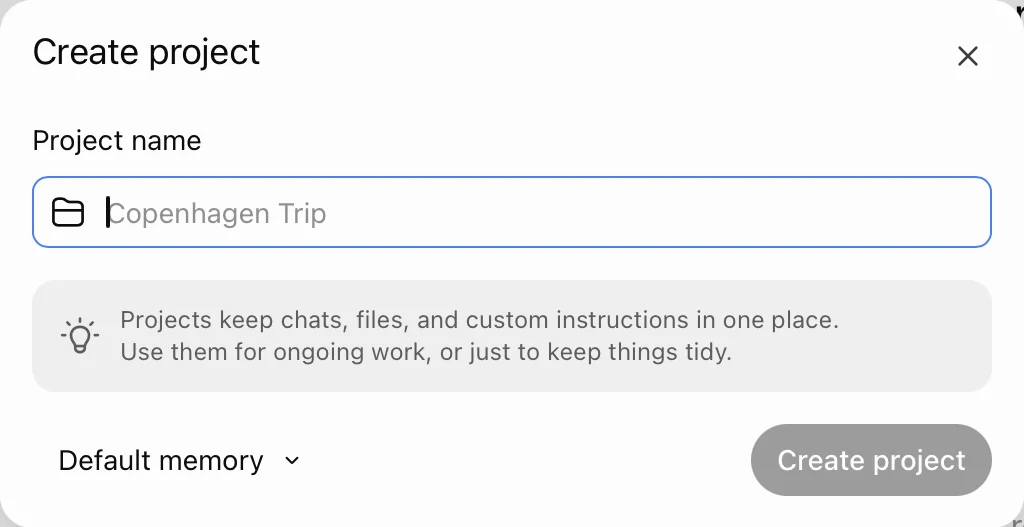
Screenshot by the author, 25 September 2026.
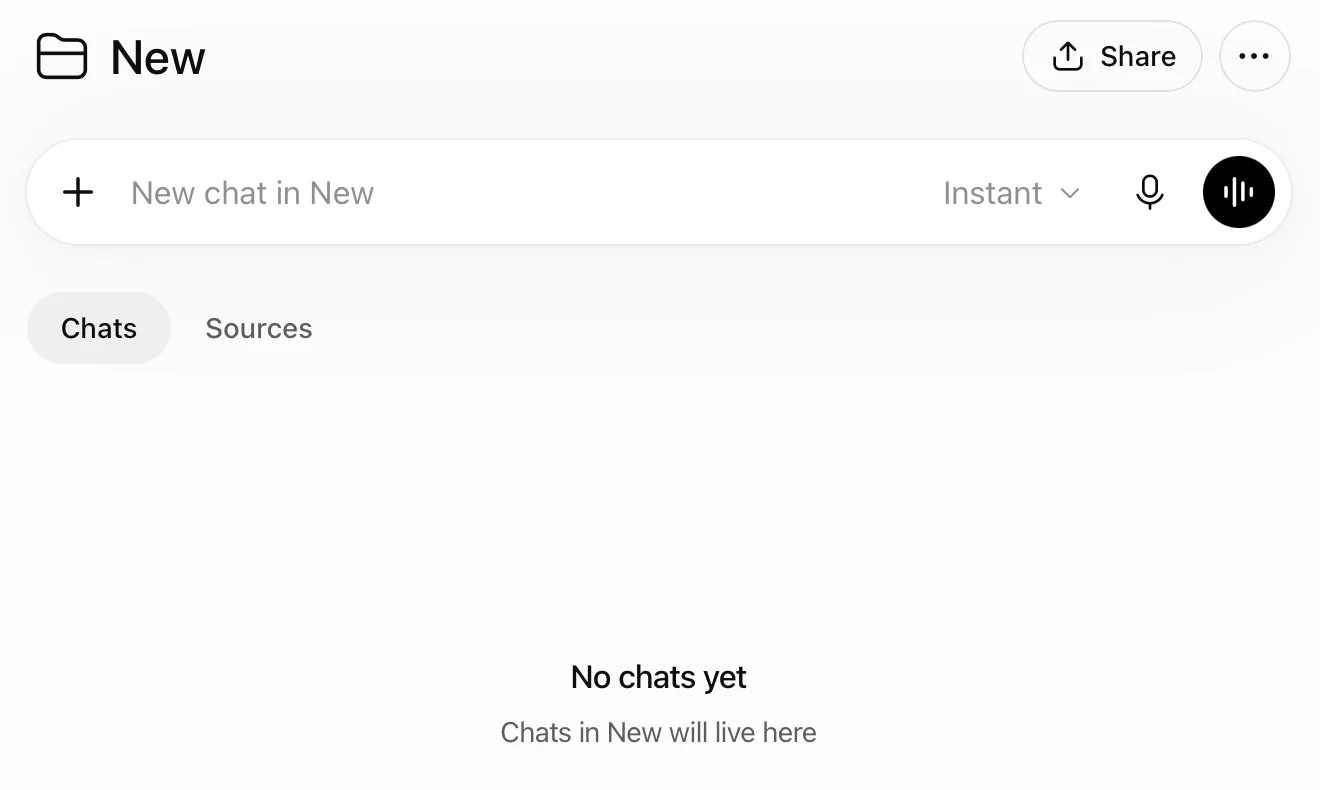
Screenshot by the author, 25 September 2026.
The files go under Sources, the instructions under the menu at top right. In the plus menu of any chat, Work in a project starts a chat inside one and Add library files pulls a file from the Library without uploading it again.
Grok
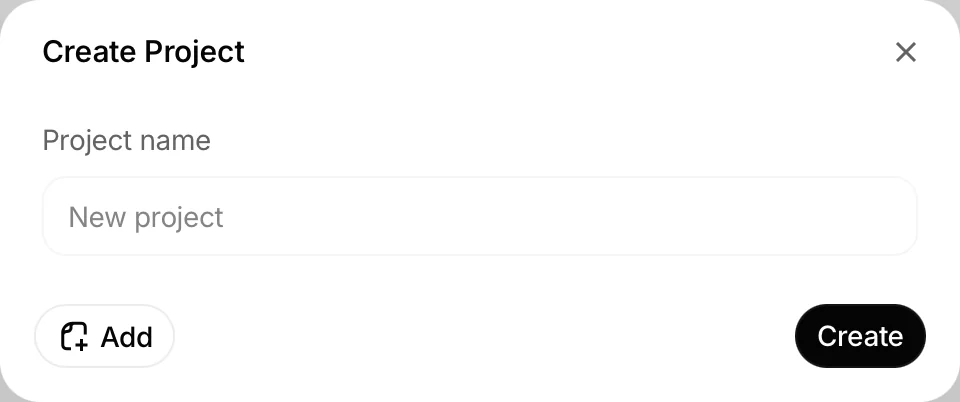
Screenshot by the author, 25 September 2026.
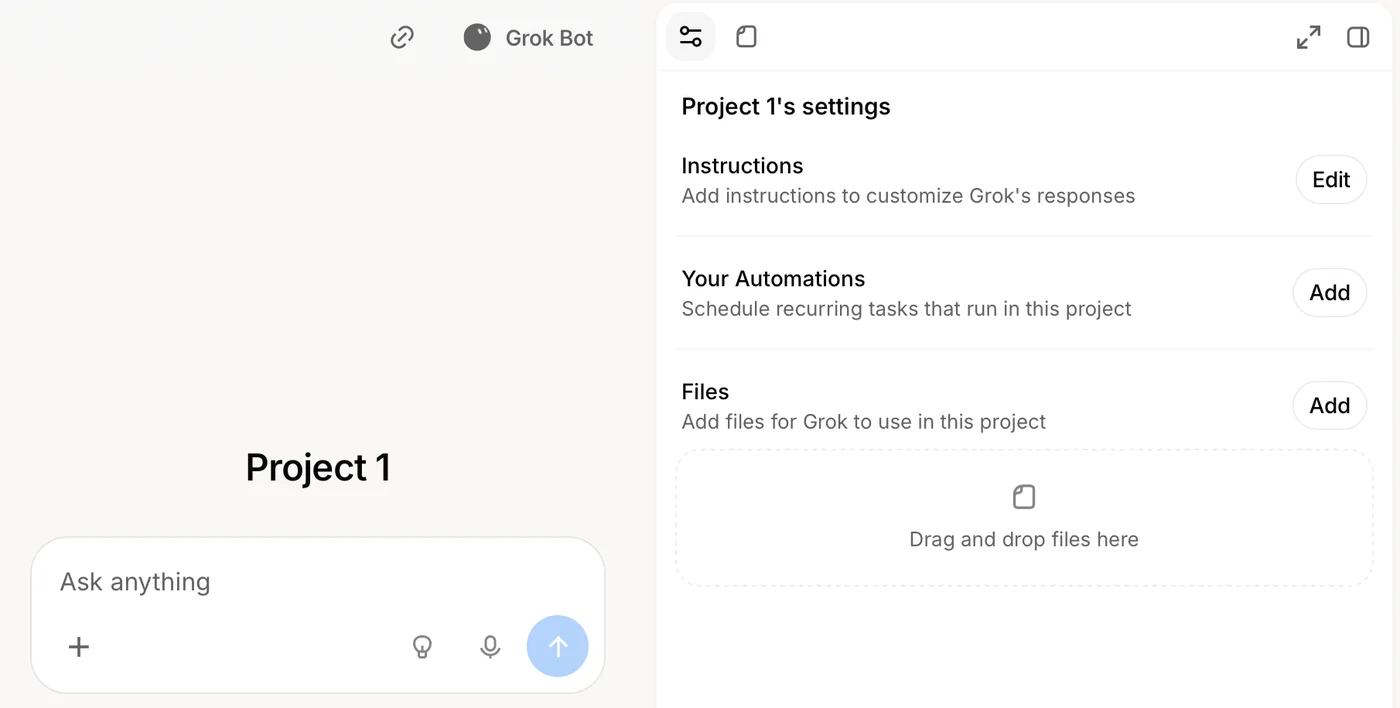
Screenshot by the author, 25 September 2026.
A Grok project can carry its own automations, so a Monday summary can run inside the project that holds the files it summarizes. From any chat, the plus menu offers Add to project.
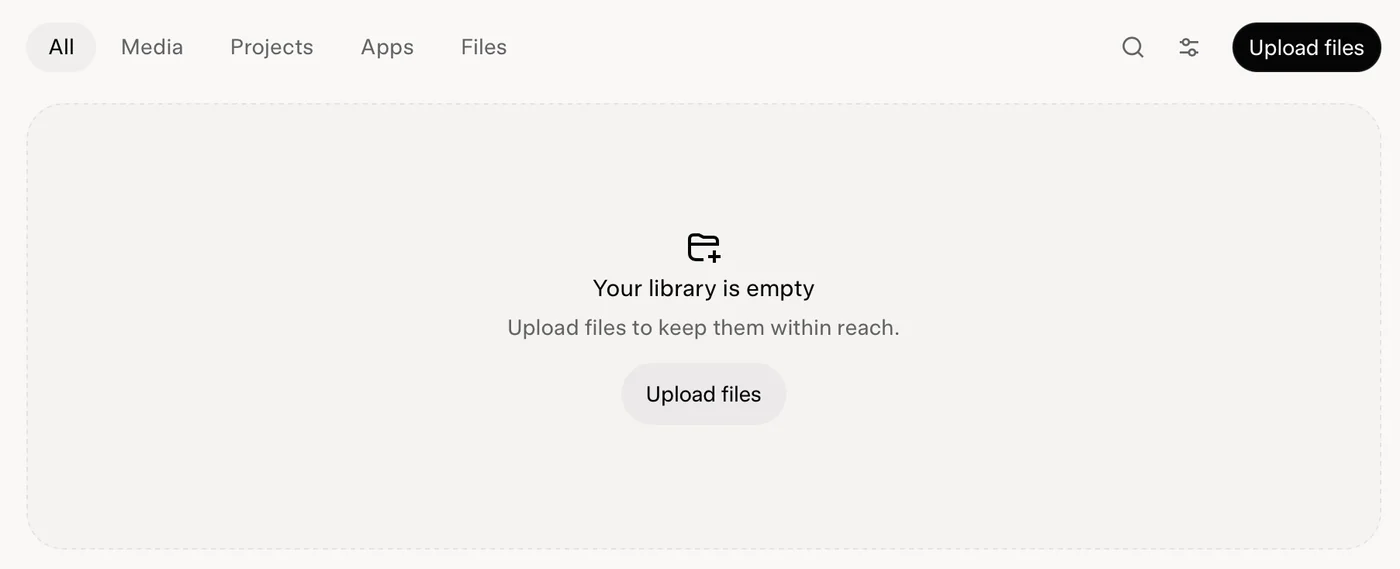
Screenshot by the author, 25 September 2026.
Gemini

Screenshot by the author, 25 September 2026.
Gemini has no projects on the public app. For the same job, build a Gem: a saved helper with instructions and files, which GPTs, agents and skills covers.
Which one to use
| You want to… | Use |
|---|---|
| Keep one job's files and rules together for weeks | A project (ChatGPT, Grok or Claude), or a Gem in Gemini |
| Find the chart you made last Tuesday | The Library |
| Reuse one file across many unrelated chats | ChatGPT's Library, then Add library files |
| Run a weekly job over a project's files | A Grok project's automations |
Vendor facts checked ; re-verify before relying on them.